Back up your text messages, and restore them to any Android phone
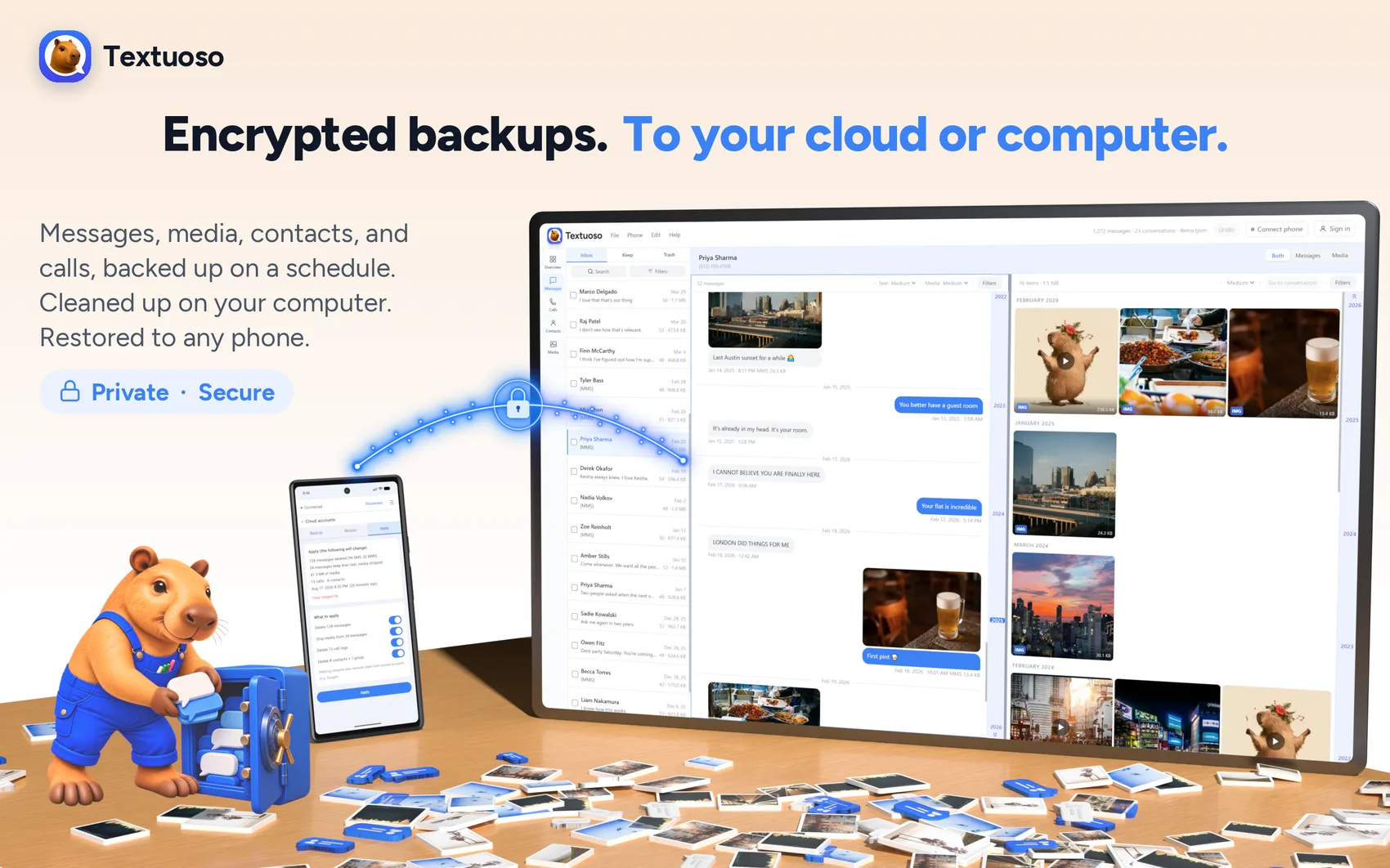
Textuoso backs up your texts, the photos and videos in them, your call log and your contacts, from the phone on its own or paired to a computer, and restores them to any Android phone.
A free account is required for the web app. Private. Secure.
What gets backed up
Every message
Texts and group threads, with the photos and videos sent in them.
RCS chats and their media
The photos and videos in RCS conversations too, including history from Samsung Messages, now retired. Support varies by phone and carrier.
The media itself
Original files, byte for byte, not shrunk or re-encoded on the way in.
Call log
Incoming, outgoing and missed, with names and durations.
Contacts and groups
Names, numbers and the groups they belong to.
Back up from the phone, no computer needed
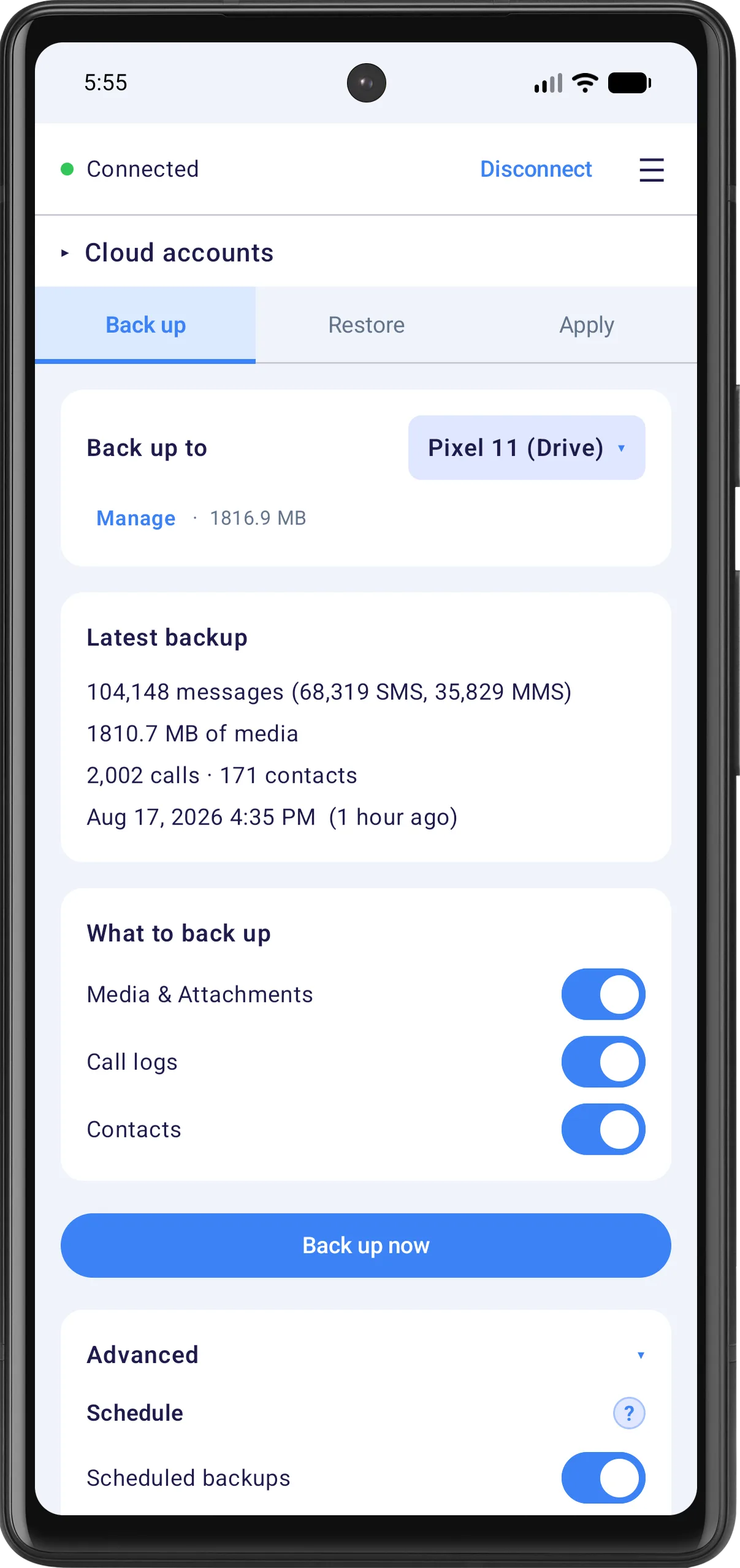
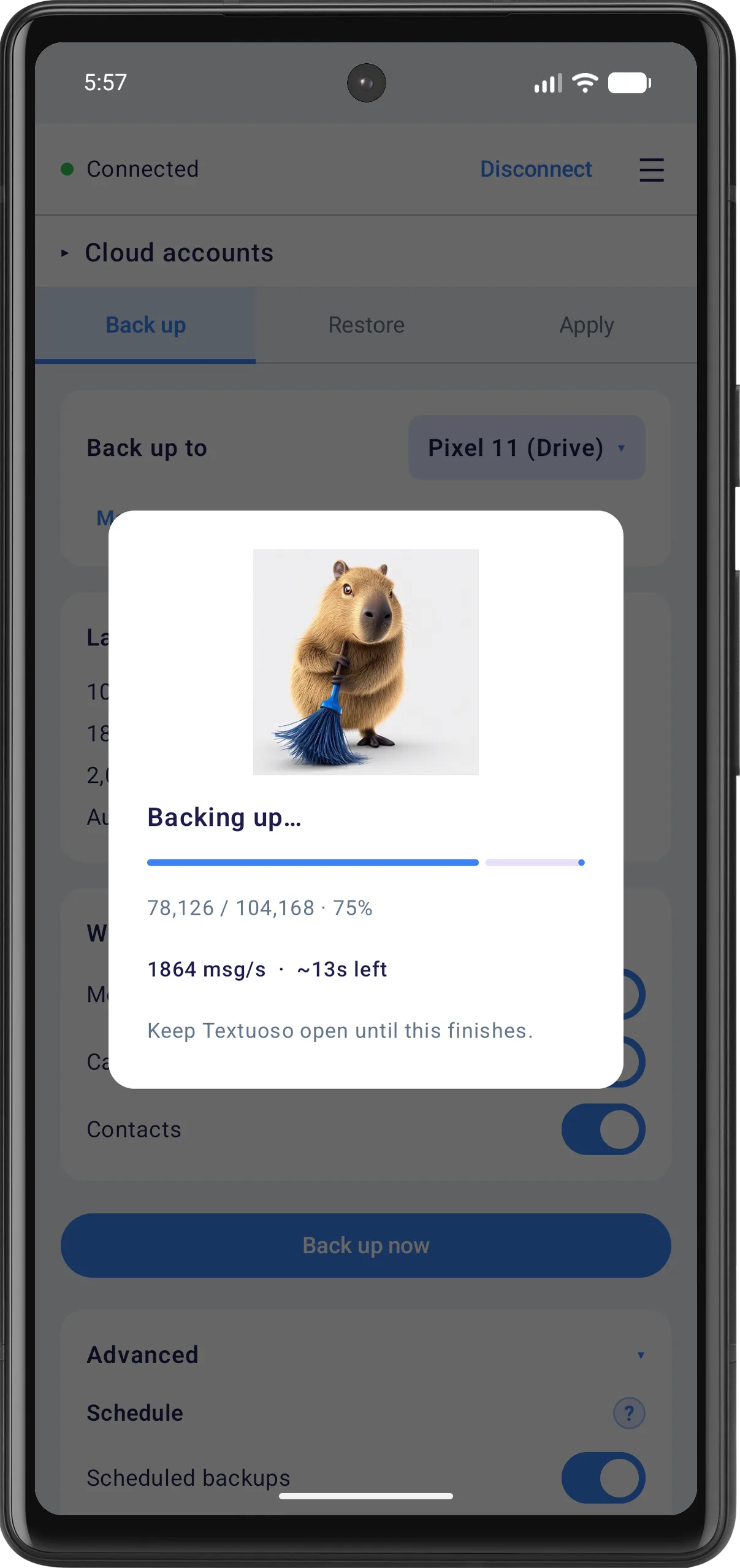
The app backs up on its own. Point it at where the backups should go, set how often, and it keeps itself up to date from then on.
Where it goes
The phone’s own storage, or your Google Drive, OneDrive or Dropbox account.
On a schedule
A time of day, and every so many days, weeks or months. It runs in the background.
Only what changed
After the first backup, later runs are incremental, writing just the new messages, so they stay fast and small.
Snapshots
A frozen copy of everything as it was on a date, kept alongside the running backup.
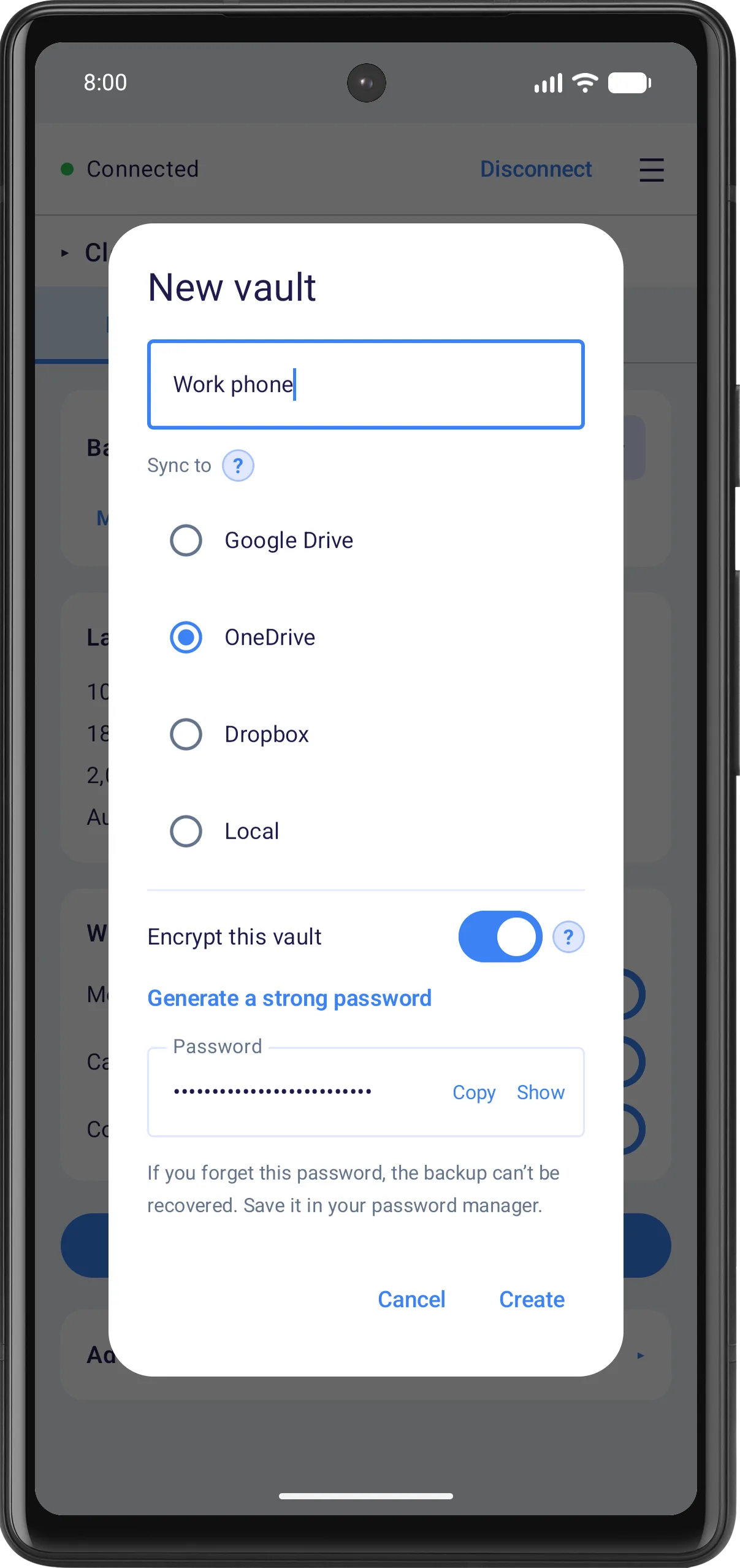
Encrypted if you want
Lock a backup with a password only you know, so a copy sitting in cloud storage is unreadable without it.
Nothing to pay for
Scheduling, cloud destinations and encryption are not a paid tier. The Android app is free.
Back up with a computer
Pair the phone to your browser with a QR code and the same history opens on a full-size screen. From there you can do three things the phone alone cannot.
Back up straight to the computer
The backup file lands on your machine instead of the phone, so it is never limited by the space left on it.
Clean it up first, then back up
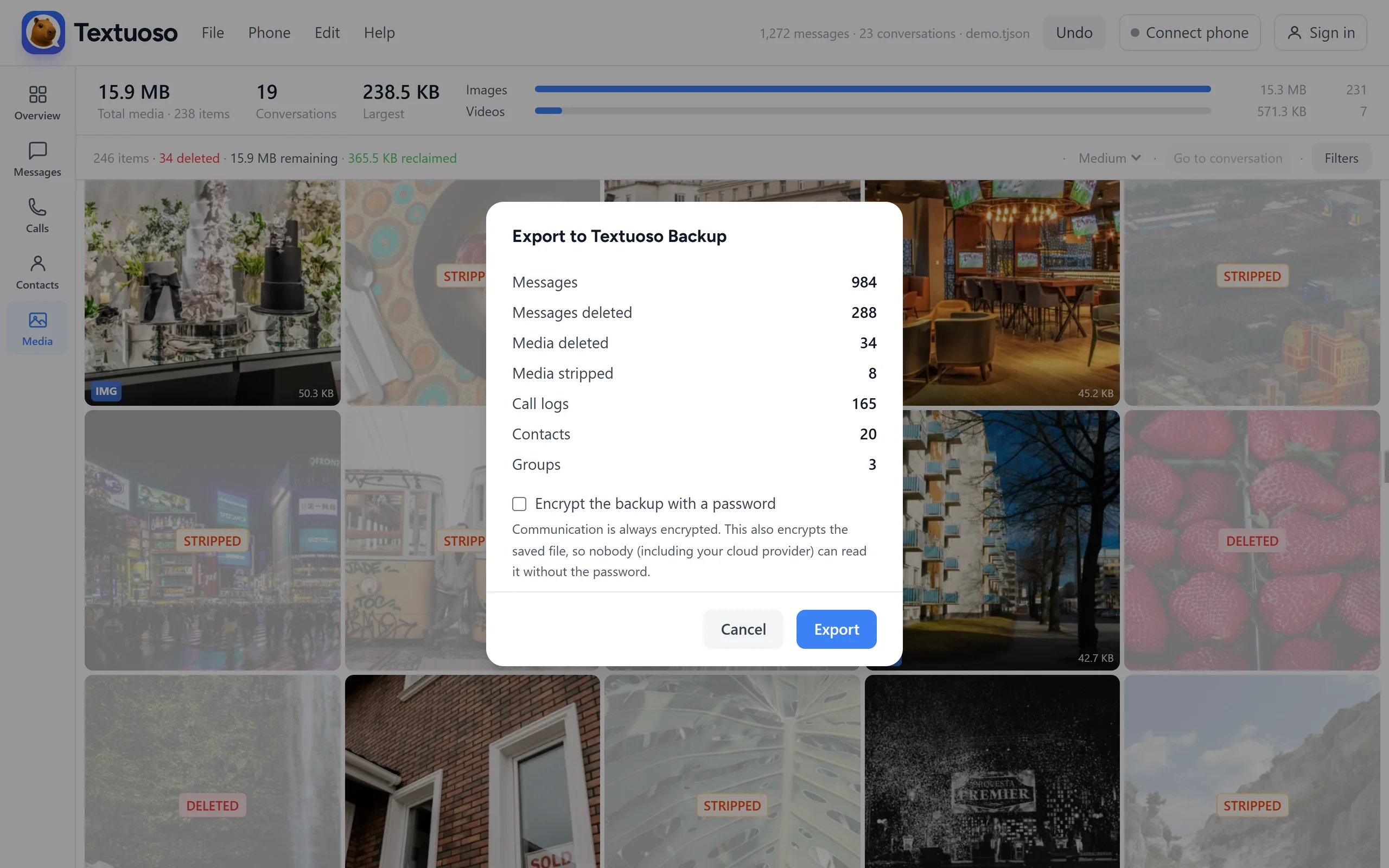
Load the phone, delete the junk and strip the attachments you do not want, and export a backup of what is left.
Open what is already on the phone
Read backups the phone made, including restore points prepared for a move, without hunting through folders or copying files around.
Restore to any Android phone
Pick a backup, choose whether to merge it into what is already on the phone or wipe and replace what is there, then start the restore. You can restore messages, the call log and contacts together or pick only the ones you want, and leave the media behind if you only care about the words.
Merging skips anything already on the phone, so restoring the same backup twice does not double your messages. Restored messages appear in whatever messaging app you use, Google Messages included: they go into the phone’s own message store, not into Textuoso.
Two things worth knowing first
Android only lets the default SMS app write messages, so Textuoso asks to become it before a restore. When the restore is done you can switch back to your normal app from within Textuoso. Backing up needs none of this; it is restoring that Android guards.
A big restore is slow, because of how Android stores messages rather than anything Textuoso does. MMS is what costs the time: tens of thousands of them can take hours, where the same number of plain texts is quick. Start a large one before bed and leave the phone charging.
Moving to a new phone
Back up the old phone, install Textuoso on the new one, and restore. The backup can travel however suits you: through your cloud account, through the computer, or on the phone itself. It restores to a different phone and a different messaging app: the messages go back as ordinary SMS and MMS, so they appear in whatever app that phone uses.
Coming from SMS Backup & Restore
Your existing .xml backups still work. Open one in the browser, look through it, clean it up, and restore it to any Android phone. New backups made by Textuoso are also generally at least 20% smaller, because photos and videos are stored as the original bytes rather than as base64 text, which inflates binary data by roughly a third. A photo forwarded through five conversations is also stored once rather than five times. The demo we provide is an extreme case, with the same pictures repeated across many conversations. That repetition causes the Textuoso backup file to be four times smaller than the same messaging data exported to an SMS Backup & Restore XML file. Real messaging histories are not that lopsided, but they are full of repeated animated GIFs, meme videos, and forwarded photos landing in thread after thread, so the savings are real.
The backup is yours
There is no Textuoso server holding your messages. Backups are files, written to your phone, your computer, or a cloud account that belongs to you. When the phone is paired to your browser the two talk to each other directly, over an encrypted connection.
Encrypting a backup file is your choice, with a password only you know. If you lose that password nobody can open the backup, including us, which is the point of it.
Common questions
- How do I back up my text messages on Android?
- Install Textuoso, choose where backups should go, and set a schedule. The first backup copies everything; later ones are incremental, writing only what changed. No computer is needed.
- Does it save the photos and videos in my messages?
- Yes, as the original files rather than shrunken copies. You can also leave the media out to keep a backup small.
- Where are the backups stored?
- Wherever you choose: the phone’s storage, your computer, or your own Google Drive, OneDrive or Dropbox account. They are ordinary files that belong to you.
- Can it back up automatically?
- Yes. Pick a time of day and how often, every so many days, weeks or months, and it runs in the background from then on.
- Will restoring create duplicate messages?
- No. Merging skips anything already on the phone, and replacing clears what is there first, so restoring the same backup twice cannot duplicate your messages.
- Do I need to make Textuoso my default SMS app?
- For restoring, yes, because Android only lets the default SMS app write messages. Backing up does not need it. Once the restore is done you can switch back to your normal app from within Textuoso.
- Do I need a computer?
- No. The phone backs up and restores on its own. A computer gives you a big screen for browsing and cleaning up, and somewhere else to keep the backups.
- Can I restore to a different phone?
- Yes, to any Android phone. Restored messages show up in whatever messaging app that phone uses. This is your phone’s texting history, so apps that keep messages to themselves, like WhatsApp, Signal, and Messenger, are not part of it.
- Does it work with RCS chats?
- It depends on your phone and carrier. Samsung Messages RCS chats, including their photos and videos, are read directly on Samsung phones, even though the app itself has been retired. On other combinations RCS is sometimes kept in a private database that no other app is allowed to read, so those chats may not appear.