
Delete thousands of text messages at once
Textuoso connects your Android phone to your browser, so you can select messages by date, sender, size or attachment and delete them from the phone in one action. Pick out ten years of old texts, or every video over 5 MB, without scrolling through a single thread on a small screen.
A free account is required for the web app. Private. Secure.
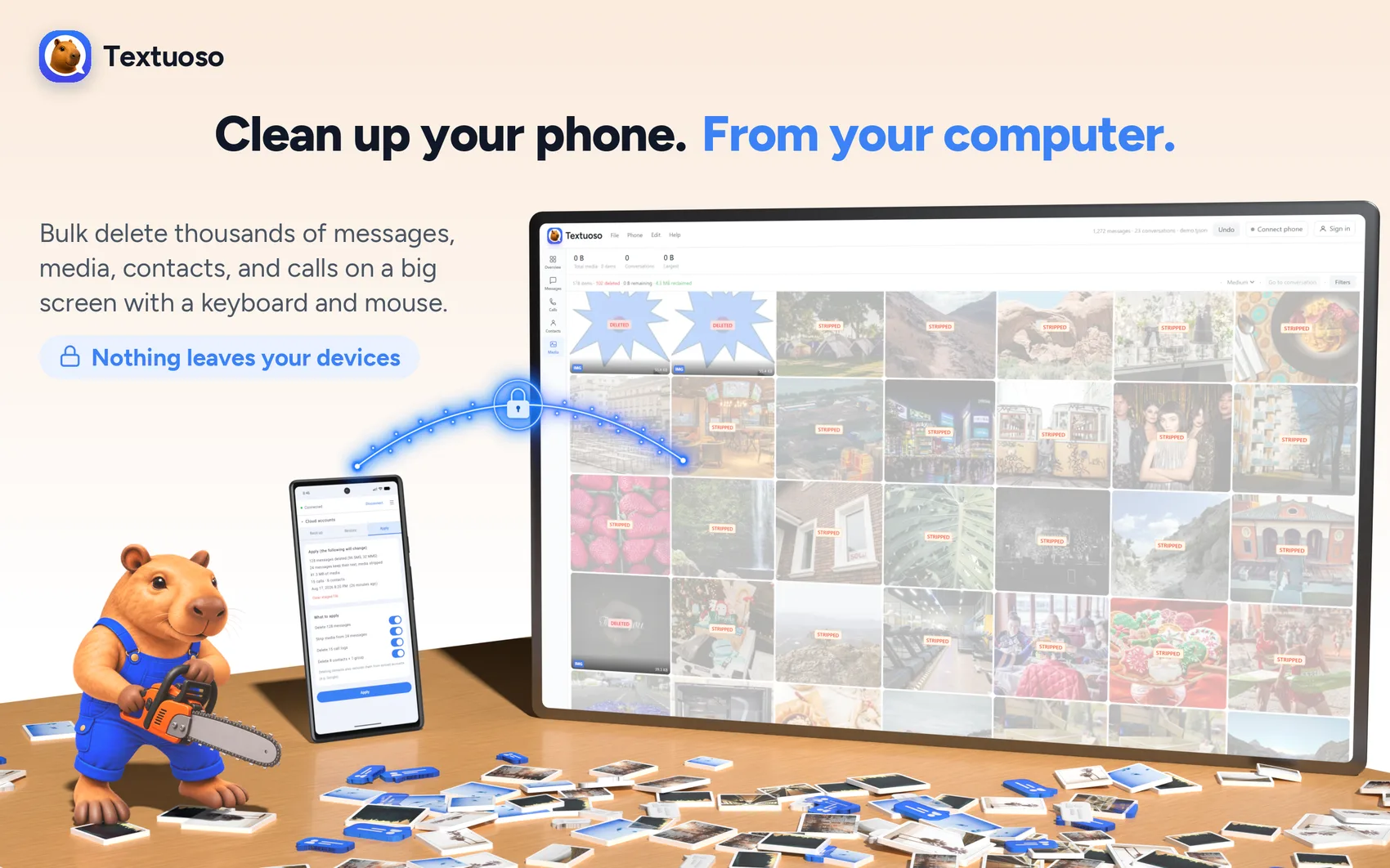
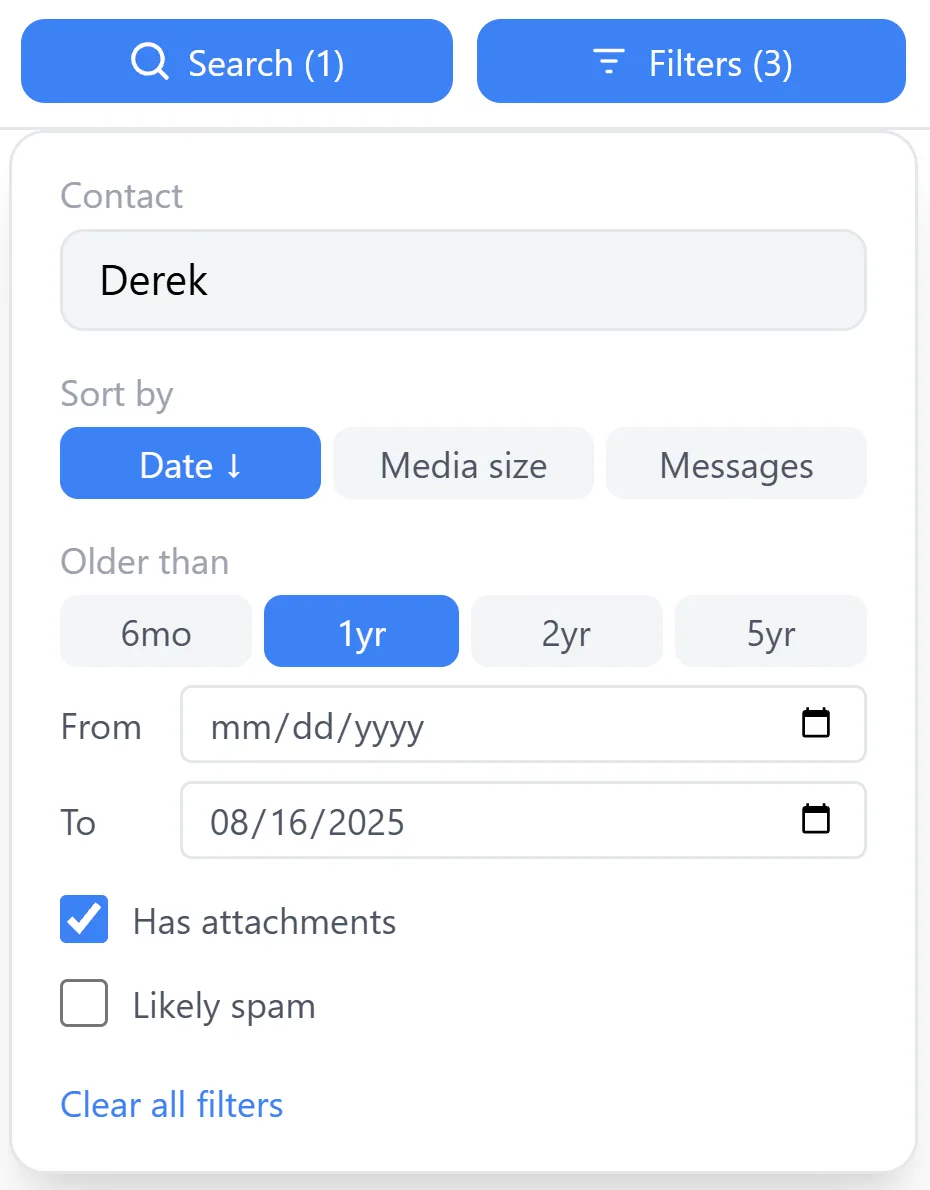
Delete by what actually matters, not one thread at a time
A messaging app lets you delete a conversation, and only by long-pressing it. There is no way to say “everything before 2019” or “every video anyone ever sent me.” That is the part Textuoso adds: pick the messages by what they are, see the count, delete them together.
By date
Everything older than a cutoff, or anything inside a range you choose.
By contact
One sender, several, or every number that isn’t in your contacts.
By attachment
Only messages carrying photos, videos, or audio.
By size
Every attachment over a size you set. This is where the gigabytes are.
By text
Search across every message, then select everything that matched.
By type
Plain texts, messages with attachments, or RCS chats, separately.
Select with a keyboard and mouse
Selecting a thousand messages by tapping is not a job for a phone. In the browser you can click the first, hold Shift, and click the last, or select everything that matched a search in one keystroke.
| Action | Desktop | Mobile |
|---|---|---|
| Select / deselect | Ctrl+click, double-click (messages), or checkbox | Long-press, then tap to add or remove |
| Range select | Shift+click or Shift+↑/↓ | Long-press the second item |
| Range select (additive) | Ctrl+Shift+click | — |
| Select all | Ctrl+A | — |
| Delete / strip selected | Delete / Backspace | Action bar button |
| Undo | Ctrl+Z | — |
| Clear selection | Escape | — |
Clear out the junk without hunting for it
Some of what you want gone can be found for you. Likely spam narrows the list to the numbers that look like verification codes, marketing and one-off senders, so you can check the count and clear years of it at once. Remove duplicates flags exact copies of the same message, which pile up after restoring a backup more than once.
Both mark messages for deletion rather than deleting them, so you decide after seeing what was caught.
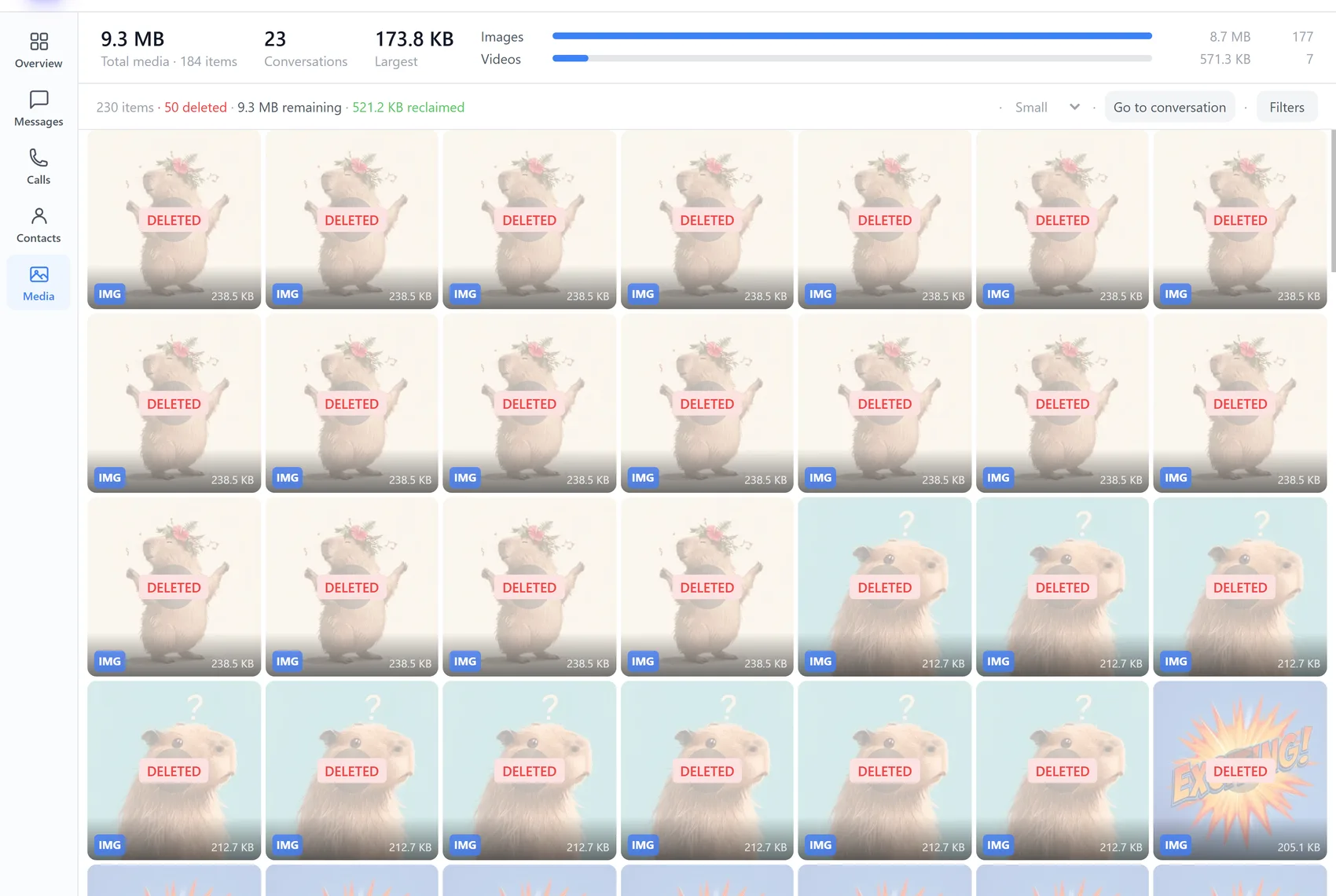
Delete the photos and videos, keep the conversation
Text is tiny. A hundred thousand messages of pure text is a few dozen megabytes. The storage on your phone goes to the photos and videos attached to them, and deleting those normally means deleting the conversation with it.
Textuoso can strip the attachments and leave the messages in place. The thread still reads the way it did, the meme video someone forwarded in 2017 is gone, and the space comes back. You can do it to one message, one conversation, or everything at once.

See exactly what you are deleting first
Nothing is deleted while you are choosing. You are looking at the real messages, with the count in front of you, and the deletion happens only when you confirm it. Selecting on a computer is also simply more accurate than tapping checkboxes on a phone: shift-click a range, select every match at once, and read what you are about to lose at a readable size.
Deletions sit in Trash until you apply them, so you can look at what you picked and change your mind, and Ctrl+Z steps back through anything you just did.
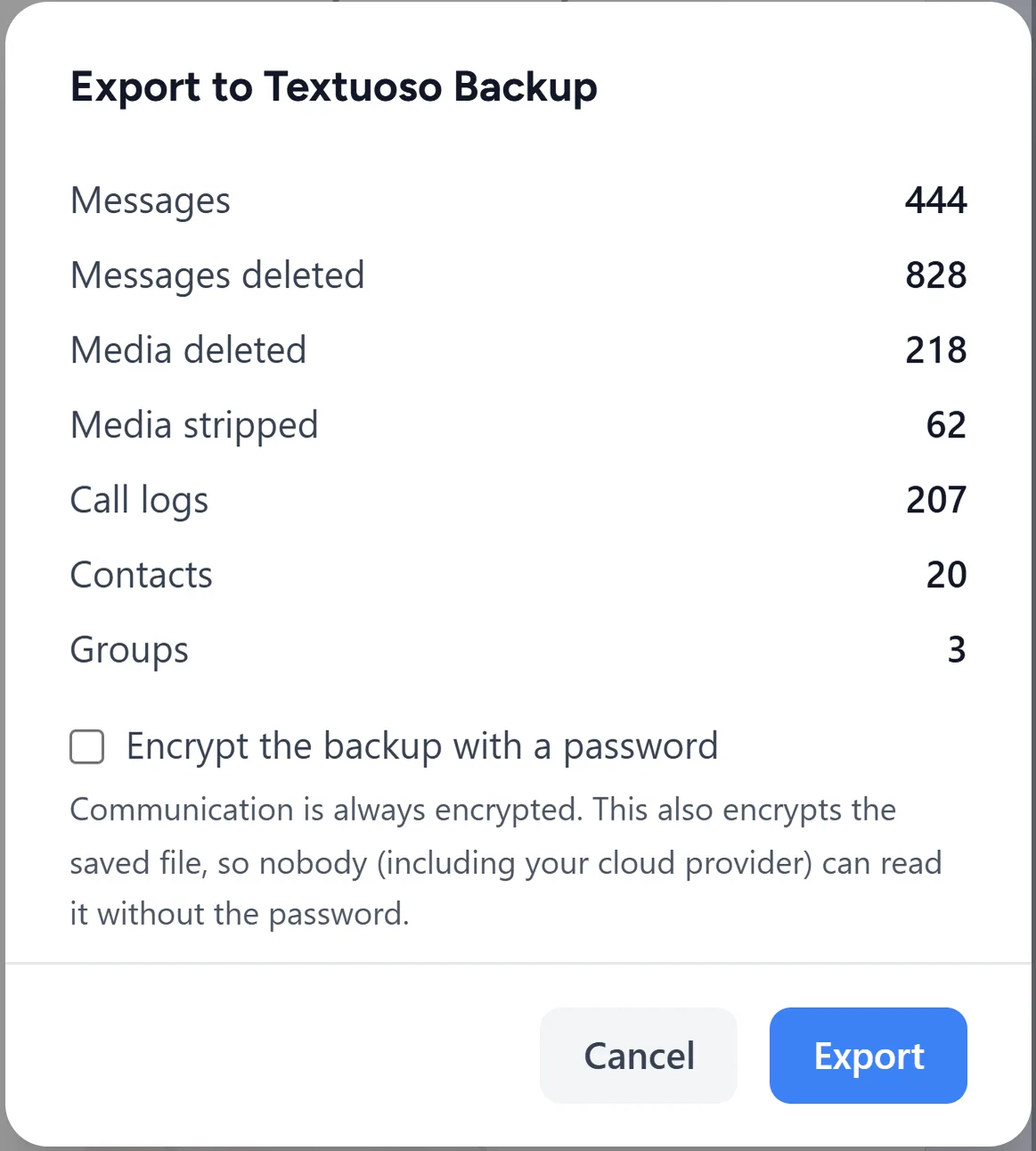
Back up what is left and the summary counts it for you, message by message and attachment by attachment:
Or apply the deletions directly to the phone. In the browser choose Phone → Apply to phone, which sends the pending changes across. The phone’s Apply tab then shows a summary of everything about to be deleted, and nothing happens until you press Apply there.
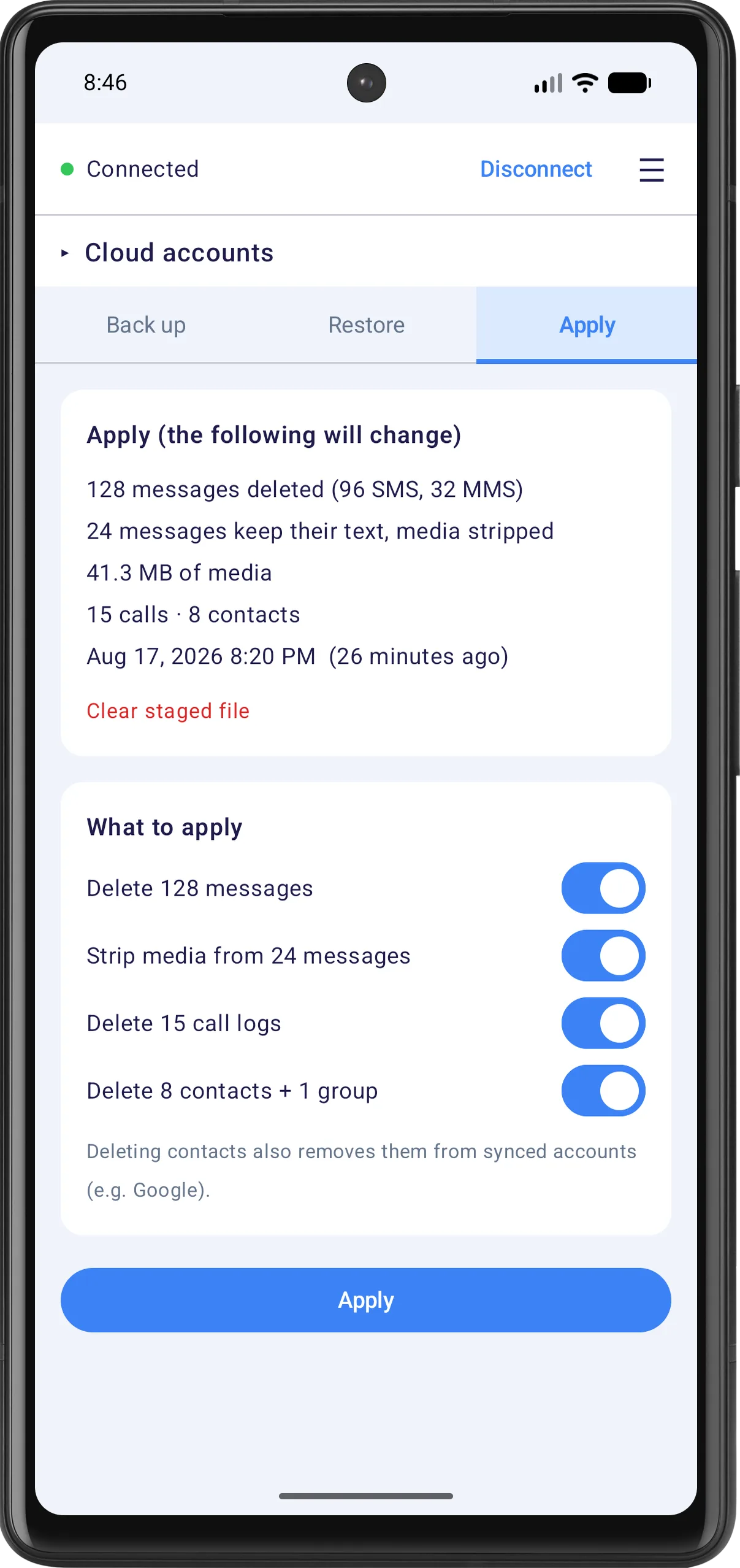
Be aware that once deletions are applied to the phone they are permanent. Android has no recycle bin for texts, and after that the only copy is one you made yourself.
Protect the conversations you can’t lose
Mark a conversation as Keep and it moves out of the inbox into its own list. It stops appearing in the messages you are sorting through, so a select-all or a wide date filter cannot sweep it up by accident. The ones that matter get out of the way of the ones you are deleting.
It is worth doing first, before any bulk selecting: mark the handful of people you would be upset to lose, then clean up everything else without having to be careful.
Back it up before you delete it
Back up first and deleting stops being a decision you have to get right. The backup keeps every message and every attachment, so anything you remove from the phone still exists, and you can put it back later if you want it.
Backups are files on your own computer, phone, or cloud drive of your choosing, and they can be encrypted with a password only you know.
How it works
- 1
Install the app and scan the code
Textuoso shows a QR code in your browser. The phone scans it, and the two connect directly to each other.
- 2
Browse, select and delete on the big screen
Your conversations appear in the browser. Use any of the controls above to filter, search and select, then delete. Deletions collect in Trash, and nothing has reached the phone yet.
- 3
Finish one of two ways
Either export a backup, which is written with the deletions already applied, so the file holds only what you kept and the phone is untouched and needs no permission. Or send them to the phone: choose Phone → Apply to phone in the browser, then open the Apply tab on the phone, check the summary, and press Apply. Only this path needs Textuoso to be the default SMS app, because Android lets nothing else delete messages, and you switch back from within Textuoso once it is done.
Or clean up a backup file instead
If what you have is a backup rather than the phone, the same selecting and deleting works on the file. Textuoso opens SMS Backup & Restore .xml backups in the browser, so you can cut them down before restoring, and restore only what you kept.
Nothing leaves your devices
Your phone talks to your browser directly, over an encrypted connection. Messages, photos and videos are never uploaded to Textuoso, and there is no server holding a copy. What happens between your phone and your computer stays between them.
Common questions
- Can I delete every text older than a certain date?
- Yes. Set a cutoff, check the count, and delete everything before it in one action. That is the most common cleanup there is.
- If I delete on my computer, does it delete on my phone?
- Not straight away. Deleting in the browser marks what should go and nothing on the phone changes yet. When you are ready, Phone → Apply to phone sends the pending deletions across and the phone carries them out once you press Apply there. The browser is a screen and a keyboard for the phone, not a live mirror, so the deletion does happen on the phone itself, when you say so.
- Can I delete just the pictures and videos and keep the texts?
- Yes. Stripping attachments leaves the messages and the conversation intact, which is what usually frees up the space you are looking for.
- Can I get the messages back afterwards?
- Only from a backup. Android has no recycle bin for texts, so make a backup first and you can restore anything you removed.
- Do I have to make Textuoso my default SMS app?
- Only to apply deletions to the phone. Browsing, selecting, and exporting a cleaned backup need nothing. Android allows only the default SMS app to delete messages, so it asks at that point, and you can switch back from within Textuoso as soon as it is done.
- Does it work with RCS and Samsung Messages?
- It depends on your phone and carrier. Samsung Messages RCS chats, including their photos and videos, are read directly on Samsung phones, even though the app itself has been retired. On other combinations RCS is sometimes kept in a private database that no other app is allowed to read, so those chats may not appear.